How automations work
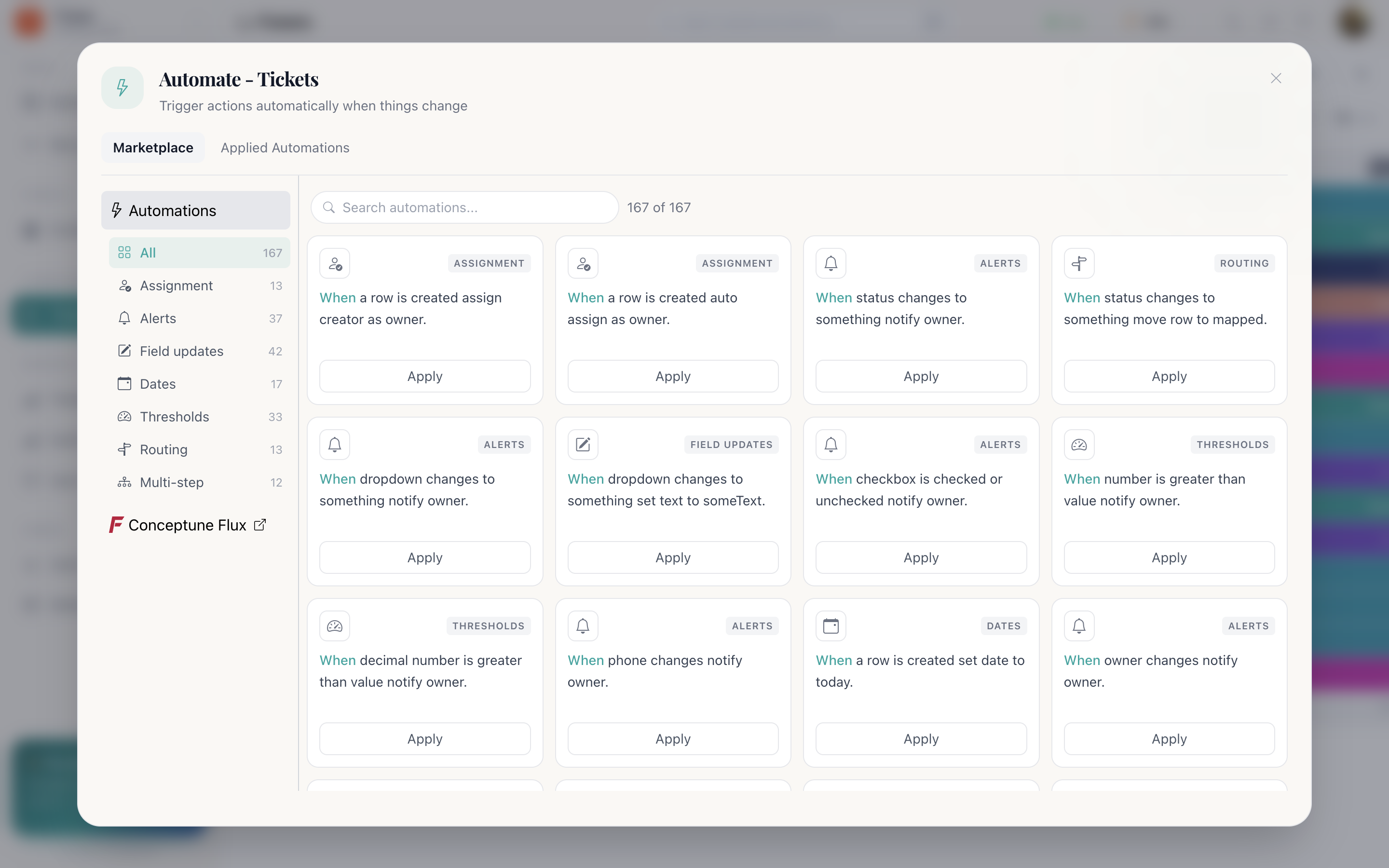
Automations are one-sentence rules: when something happens, then do something. You pick them from a marketplace of ready recipes rather than building them from parts.
The shape of a rule
Every automation reads as a sentence with blanks you fill in:
when status changes to something → then notify owner
You choose the recipe, then fill its blanks: which column it watches, which value it looks for, which column it writes. Cognify handles the rest.
What can trigger a rule
The when side watches for:
| Event | Fires when |
|---|---|
| A row is created | Any new row: typed in, imported, submitted through a form, or arriving from a channel |
| A cell is updated | A specific column's value changes |
| A cell value arrives | A previously empty cell gets a value |
| A row moves | A row changes section or panel |
| A row is deleted | A row is removed |
| A column is created or deleted | The panel's shape changes |
| A section is created | A new section is added to the panel |
Conditions
Recipes that watch a value can compare it, which is what the Thresholds category is built on:
- equals
- does not equal
- is greater than
- is greater than or equal to
- is smaller than
- is smaller than or equal to
What a rule can do
| Action | What happens |
|---|---|
| Update a cell | Write a value into a column on the same row: a status, a category, a date, a checkbox, text |
| Move the row | Send it to the panel and section named by a Mapping column |
| Notify the owner | An in-app notification, visible in the navbar |
| Email the owner | A mail to whoever owns the row |
| Send an email | A mail to an address on the row (the customer rather than the team) |
Applying one
- Panel toolbar → Automate.
- Browse Marketplace.
- Search, or pick one of the seven categories.
- Choose a recipe and fill its blanks: which column, which value.
- Apply Automation.
The same dialog lists what is already running on this panel. Open any of them to change its values or remove it.
Things worth knowing
- Automations are per panel. A rule on Leads does not run on Tickets. Set it up on each panel that needs it.
- Some recipes need an integration. Anything that sends mail needs a mailbox connected. Those recipes say so and stay unavailable until it is.
- Creating and changing them is a permission. Your role needs Can create Automation, Can update Automation or Can delete Automation: see Roles and permissions.
- Times are the workspace's own. Set datetime to now writes the moment in workspace time, so the value matches what people actually saw.
An automation did nothing
Three things to check, in order:
- Is it applied to this panel? Rules do not carry across panels.
- Does its recipe need an integration that is not connected?
- Does the column it watches still exist, with the value it is looking for still enabled?
How do I…
Add an automation: Panel toolbar → Automate → Browse Marketplace → pick a recipe → fill its blanks → Apply Automation.
See what is already running: The same dialog lists the panel's automations; open one to change its values or remove it.
Stamp the time something happened: Use status changes to something → set datetime to now.
Share work out evenly: Use a row is created → auto assign as owner, which round-robins across the team.