Email campaigns
An Email Campaign panel is a list of recipients plus a scheduled send, with per-recipient delivery status recorded on the way back.
What the panel holds
| Column | What it is |
|---|---|
| Name | The recipient |
| Owner | Who is responsible for this contact |
| Where the mail goes | |
| Status | PENDING, SENT or FAILED |
| Send Count | How many times this recipient has been mailed |
| Send Date | When the last send happened |
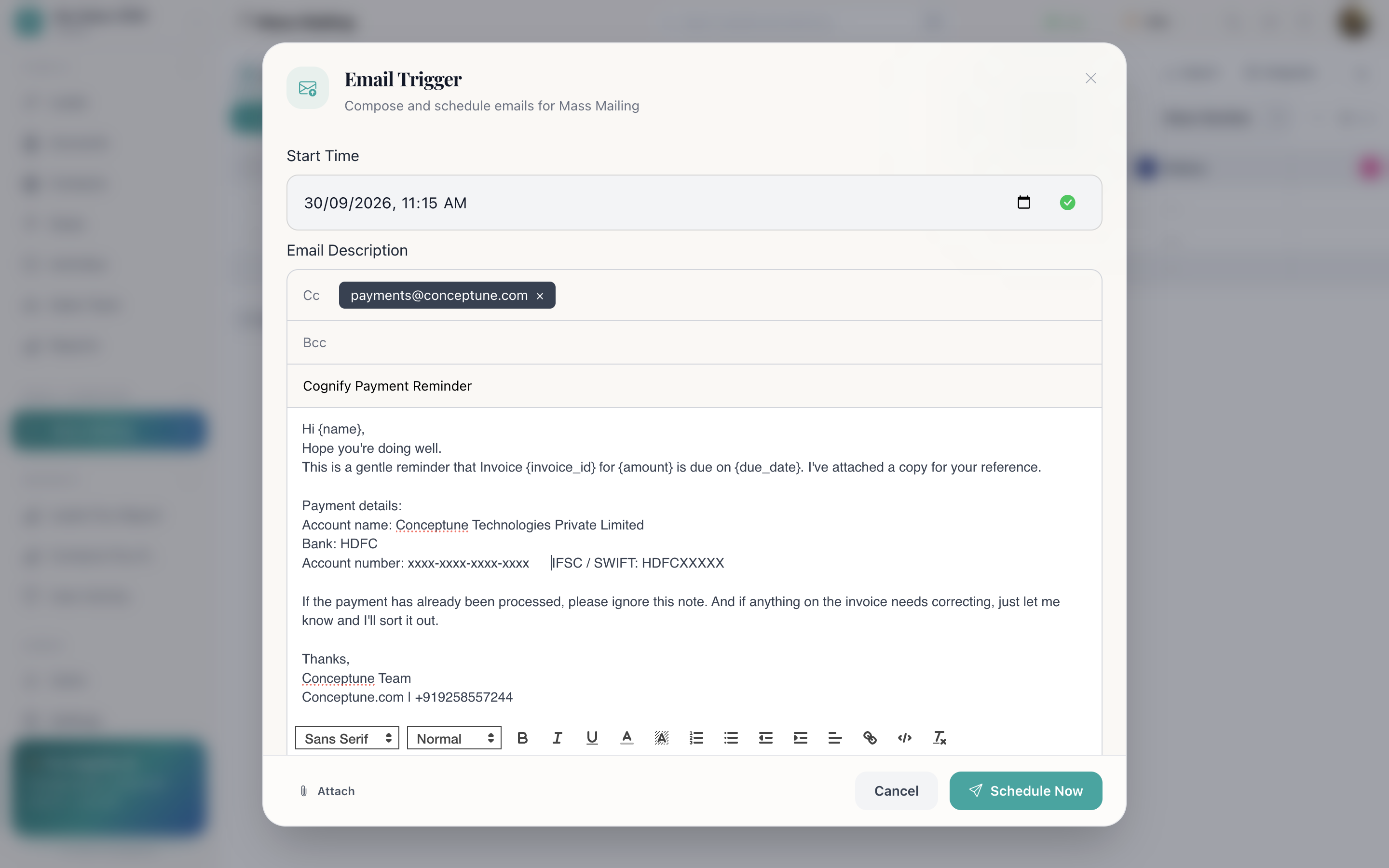
The toolbar carries Send Emails, which is the campaign composer. This panel type is the only one that has it.
Running a campaign
- Create an Email Campaign panel.
- Add recipients, type them in, or import a list. Name and Email are the two that matter.
- Send Emails.
- Write the subject and body.
- Set the Start Time.
- Schedule Now.
Watching it go out
Rows move from PENDING to SENT or FAILED as the queue works through them, and Send Count records how many times each recipient has been mailed.
Because it is an ordinary panel, you can filter to Status is equal to FAILED to see exactly who did not receive it, fix the addresses, and send again.
Sections as campaigns
One panel can hold many campaigns if you use sections, one section per send. The recipient list, the statuses and the counts stay separate, and you can compare their footers side by side.
Reporting
Add a Graphs tab and chart the Status column as a doughnut for a delivery breakdown, or a text widget with count for the size of the list. Pin either to the dashboard.
Mailing one person instead
A campaign is for bulk. To write to one person, open their record and reply from the record view. That keeps the message on their timeline where the rest of the relationship lives. See The record view.
How do I…
Run a campaign: Create an Email Campaign panel → add or import recipients → Send Emails → write it → set the Start Time → Schedule Now.
See who received it. The Status column: rows move to SENT or FAILED, and Send Count records how many times each recipient was mailed.
Retry the failures: Filter to Status is equal to FAILED, fix the addresses, and schedule another send.
Mail one person only: Open their record and reply from the record view instead.