Columns
Columns are the panel's shape. Every column has a name, a type, a width, an optional aggregation shown in the footer, and three switches, editable, updatable and removable: which is how system columns stay put.
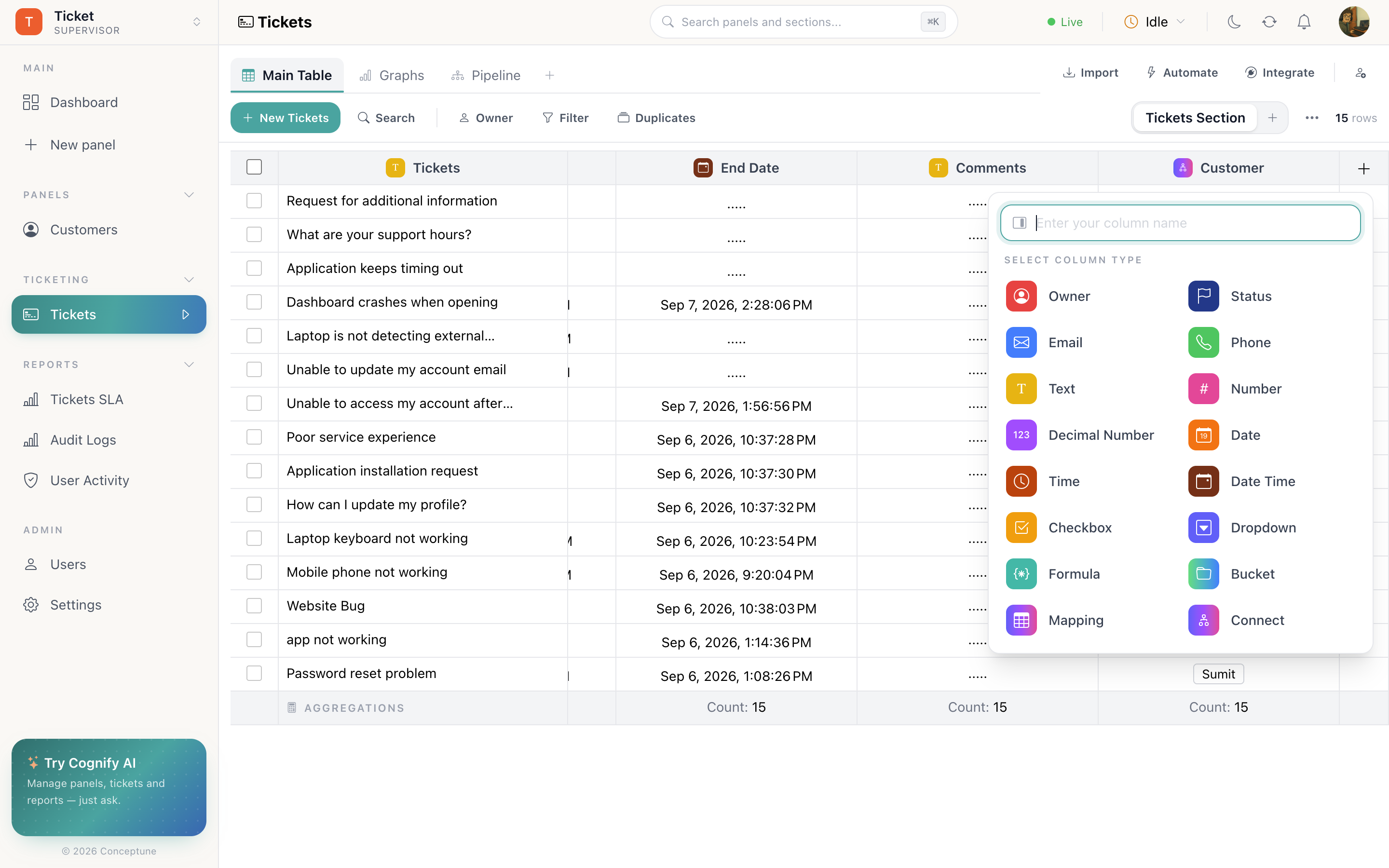
Every column type
Identity and people
| Type | Holds | Notes |
|---|---|---|
| Unique ID | A 16-character reference (A-Z, 0-9) | Generated on row creation and never edited. One per panel. Search matches it, so it is the reference to quote to a customer |
| Owner | A workspace member | Drives owner filters, notifications, round-robin assignment and the only see my own rows permission |
Choice
| Type | Holds | Notes |
|---|---|---|
| Status | One of your statuses, coloured | Statuses are defined per column. A Pipeline board uses a status column for its lanes |
| Dropdown | One of your options | The same editor as statuses, but with no board or SLA meaning attached |
| Category | A ticket category | Carries keywords, SLA targets and assigned members. See Ticketing and support |
| Checkbox | Yes / no | Counts cleanly into charts, and triggers the is checked or unchecked automations |
Text and contact
| Type | Holds | Notes |
|---|---|---|
| Text | Free text | The general-purpose column |
| An address | The cell is tappable, and the value is what duplicate detection matches on | |
| Phone | A number | Tappable, and also matched by duplicate detection |
Numbers and time
| Type | Holds | Notes |
|---|---|---|
| Number | Whole numbers | Aggregates as sum, avg, min or max |
| Decimal Number | Fractional numbers | For money, rates and scores |
| Date | A calendar day | Due dates, close dates, start dates |
| Date Time | A day and a time of day | What set datetime to now automations stamp |
| Time | A duration | Used for things like resolution time rather than a clock reading |
Computed and linked
| Type | Holds | Notes |
|---|---|---|
| Formula | A value computed from other columns | Read-only in the table. Recalculates when its inputs change |
| Connect | Links to rows in another panel | Pick the target panel when you create the column. This is how a Task points at its Project, or a Deal at its Company |
| Mapping | Pushes the row into another panel | Set the target panel and section. Unlike Connect this moves data rather than referencing it. it is what move row to mapped automations use |
| Bucket | Files attached to the row | Upload and download straight from the cell |
| Snapshot | A frozen copy of a row as it was | Written by reports. Open it to read the fields at that moment |
| Flux Chat | The chat session behind the row | Opens the transcript |
Aggregation
Any column can show a total in the table footer: none, count, sum, avg, min or max. Set it from the column menu → Select aggregation.
This is what makes a section answer a question without any chart. Put sum on a deal value column and the footer of your Won section is your revenue; put avg on a resolution time column and the footer is your average handling time.
The three switches
Every column carries three flags that decide how much of it can be changed:
- editable: can the value in a cell be typed over?
- updatable: can the column itself be renamed and reconfigured?
- removable: can the column be deleted?
System columns ship with these switched off, which is why a Ticketing panel's Ticket ID cannot be renamed away. You can use the same switches on your own columns to protect a formula everyone depends on.
How do I…
Add a column: In the table header, the + at the far right → name it → pick the type from the list.
Set up statuses, dropdown options or categories: Open the column header's menu and open its editor. Each option has a name and a colour, and can be switched off with Disabled rather than deleted.
Write a formula: Column menu → formula editor → build the expression from the other columns.
Link two panels: Add a Connect column and pick the panel it points at, then choose rows in the cell. Use Mapping instead when a row should be moved rather than referenced.
Show a total under a column: Column menu → Select aggregation. The result sits in the table footer.
Reorder or resize columns: Drag a header to reorder; drag its right edge to resize. Both are remembered.
Lock a column: Column menu → toggle editable / updatable / removable.
Delete a column: Column menu → delete → confirm. The data in it goes too.