Exporting data
Everything you can see, you can take out. Exports run server-side and land in Background tasks, so a large one does not tie up your browser.
The three places to export from
| What you want | Where |
|---|---|
| A whole section | Section ⋯ → Export |
| Just some rows | Tick them with the checkbox column → Export |
| The numbers behind a chart | Open the widget's settings → Export |
Background tasks
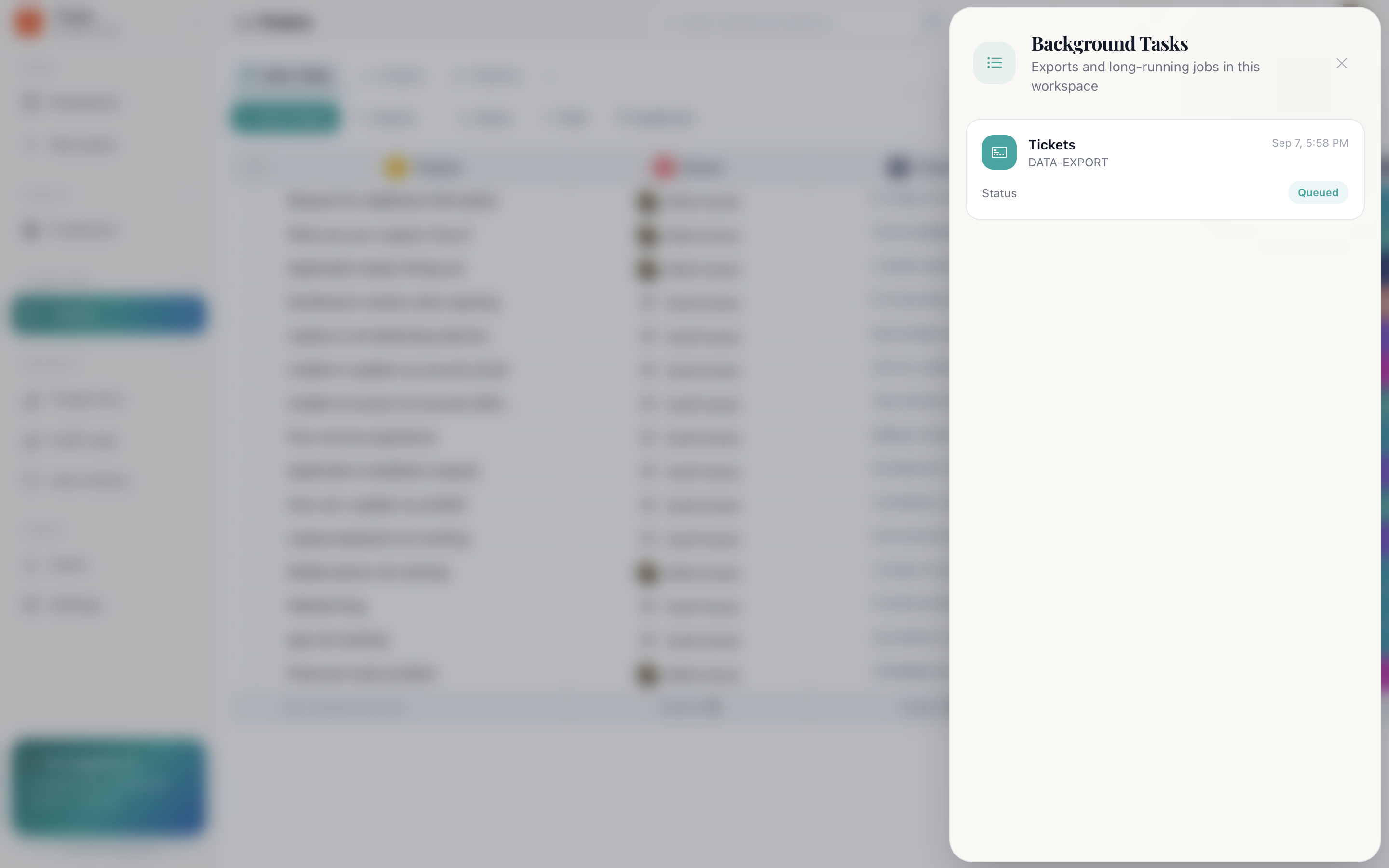
Every export is queued as a background job rather than generated in the page. Open Background tasks in the navbar to see them, each showing one of three states:
- Queued
- Processed
- Failed
You can navigate away, close the panel, or keep working, the job continues. The file becomes available when the job reports Processed.
What comes out
An export contains the rows as they are in the panel, with one column per panel column. Filters you had applied are respected, so filtering to one owner and exporting gives you that owner's rows.
Activity timelines, attachments and chat transcripts are not part of a row export. They belong to the record rather than the table.
How do I…
Export a section: Section ⋯ → Export, then watch Background tasks.
Export just the rows I filtered to: Apply the filter, select the rows, then Export from the bulk bar.
Get a chart's numbers out: Open the widget's settings → Export.
Find an export that never arrived: Navbar → Background tasks. Failures are listed there with the job that produced them.