Public forms
Any section of a standard panel can be published as a form on the open web. Someone fills it in, and their answers arrive as a row in that section, no Cognify account needed.
What a form is good for
Lead capture
A “contact us” form whose submissions land straight in your Leads panel, ready for the owner automation to assign them.
Intake requests
Internal requests (IT, facilities, leave) arriving as rows in a ticketing section.
Applications
Candidates, vendors or registrations filling in their own details rather than someone retyping them.
Feedback
A short survey whose answers you can chart from the Graphs tab.
Publishing one
- Open the section you want submissions to land in.
- Section ⋯ → Form link.
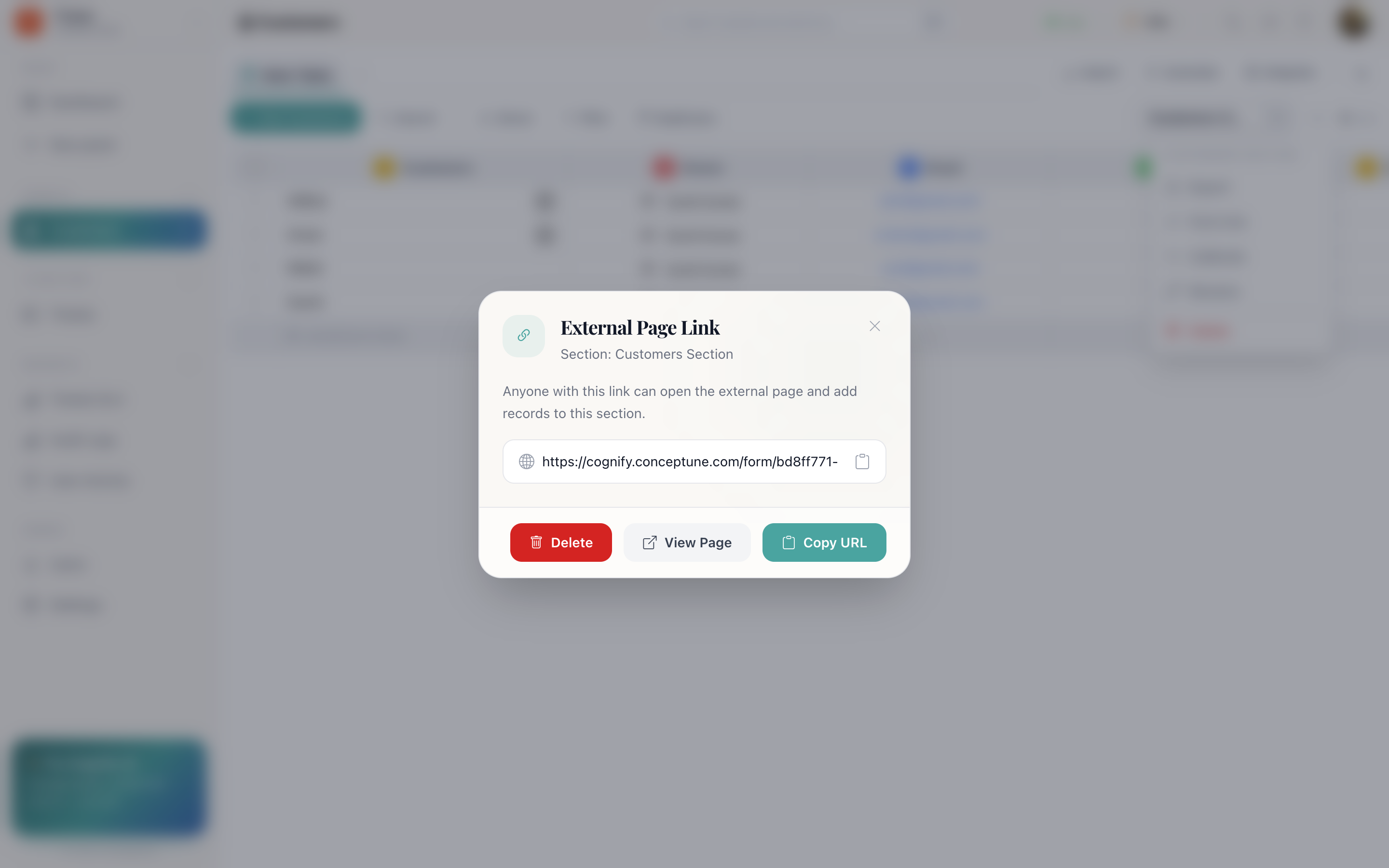
- Generate Link.
- Copy URL. This is what you share.
View Page opens exactly what a respondent sees, which is worth checking before you send the link anywhere.
What respondents see
A clean page with one field per column in the section, and no Cognify branding to sign in behind. They do not see your other rows, your other sections, or anything else in the workspace.
What happens on submit
A new row appears in the section. Because it is a normal row creation, everything you have set up applies:
- When a row is created automations fire, including auto assign as owner, which is how a form submission gets picked up by whoever is next in the rotation.
- The record gets an activity timeline like any other.
- The submission is attributed to User on that timeline, because it came from outside the workspace.
Taking a form down
The same dialog → Delete. The link stops working immediately. Rows that already arrived stay where they are.
How do I…
Publish a form: Section ⋯ → Form link → Generate Link → Copy URL.
See what respondents see: The same dialog → View Page.
Take a form down: The same dialog → Delete.
Change which fields appear: Add or remove columns on the panel; the form follows the section's columns.