Workspace settings
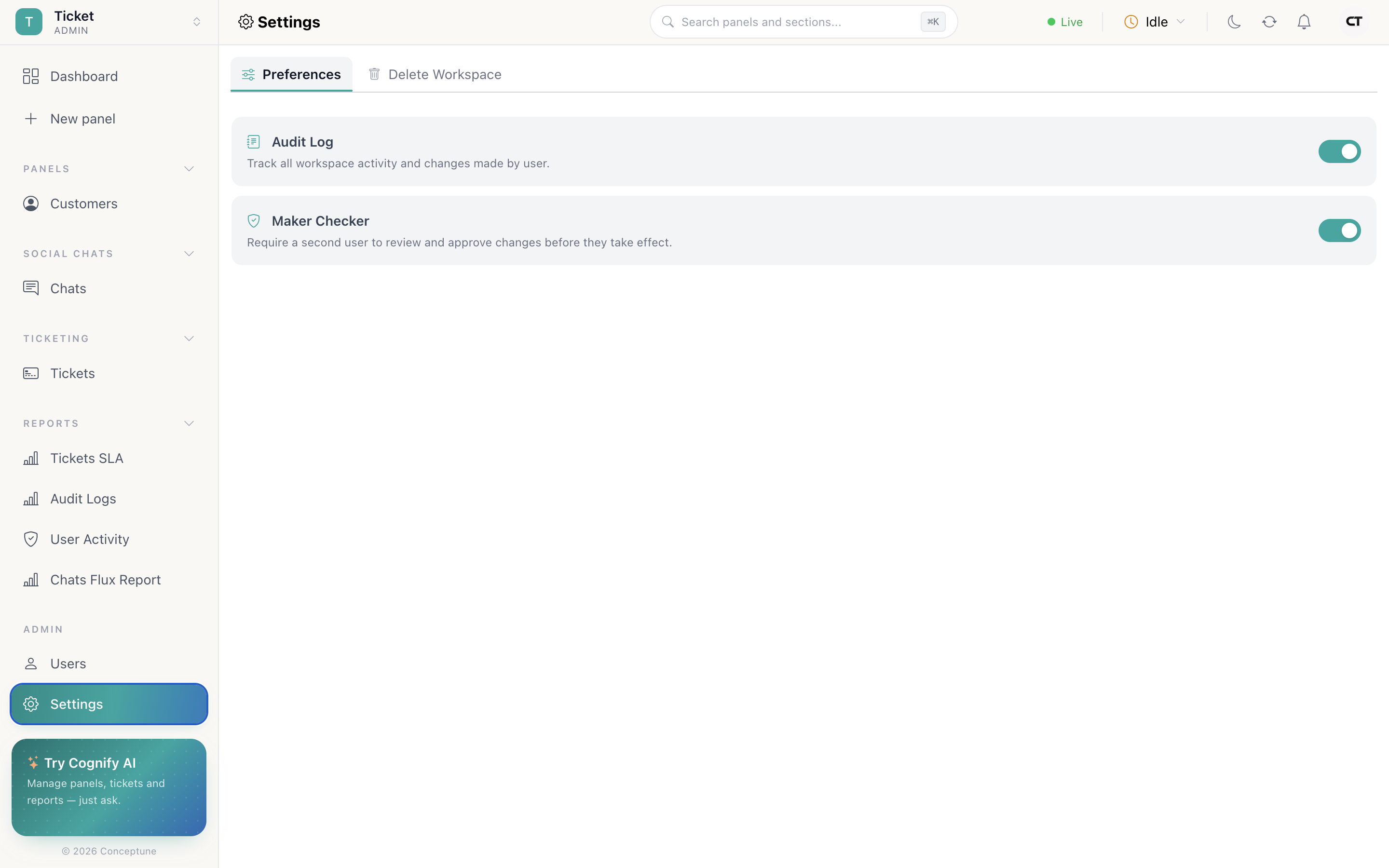
Settings holds the two workspace-wide switches, your plan, and the way out. Both pages need Can manage Settings or admin.
Preferences
| Switch | What it does | Also creates |
|---|---|---|
| Audit Log | Tracks all workspace activity and changes made by users | The Audit Logs report |
| Maker Checker | Requires a second user to review and approve access changes before they take effect | The User Activity report and the approval queue |
Plans
Your current plan and what it includes are shown in the navbar under Plan. Cognify has four tiers:
- Free
- Basic
- Premium
- Enterprise
The plan is per workspace, so one workspace can be on a paid tier while another you belong to is not.
Deleting a workspace
Settings → Delete Workspace, then confirm. This removes the workspace and its data: panels, rows, activity, integrations and automations.
A sensible starting configuration
For a workspace that more than three people will use:
- Audit Log on, from day one.
- Maker Checker on if anyone other than you can manage users.
- At least two admins, so nobody is locked out.
- Named roles rather than everyone on Admin Access, see Roles and permissions.
How do I…
Keep a record of who changed what: Settings → Audit Log on, then read the Audit Logs report under Reports.
Require approval for access changes: Settings → Maker Checker on, then give reviewers Can approve maker request.
Check my plan: Navbar → Plan.
Delete a workspace: Settings → Delete Workspace → confirm.