The console
Once you are inside a workspace, everything happens in the console. The sidebar is where you go; the navbar is what you do across the whole workspace.
The sidebar
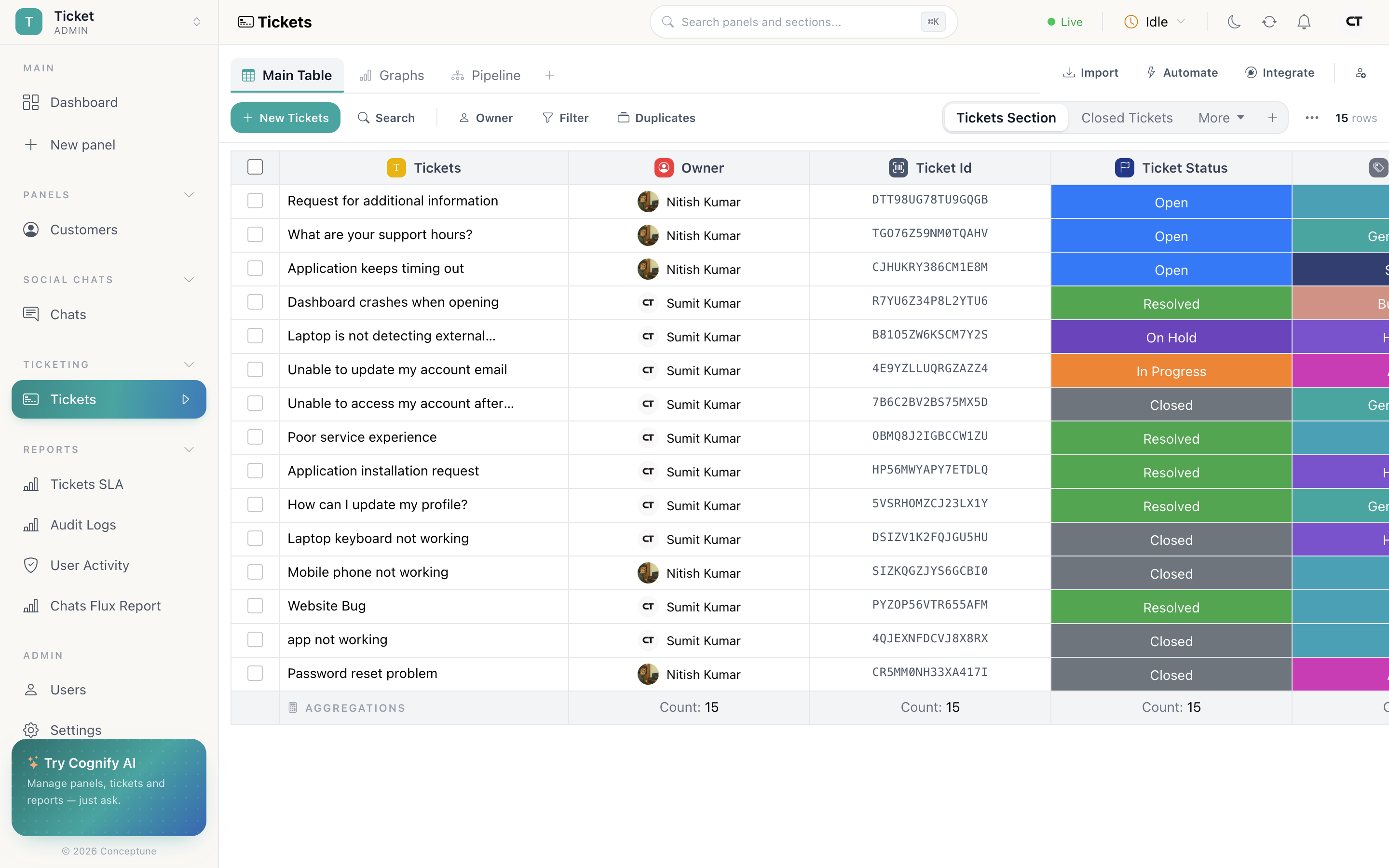
Top to bottom: the workspace name, then Dashboard, then your panels grouped by what they are, then Users and Settings.
The panel groups are:
- Panels: everything of the Standard type
- Social Chats: conversation panels
- Ticketing: support desks
- Email campaign: bulk send lists
- Reports: the read-only panels Cognify maintains
Each group collapses with the chevron beside its heading, which matters once a workspace has thirty panels in it. New panel sits at the top of the list, and hovering any panel reveals a ⋯ menu to rename, re-icon or delete it.
The navbar
The navbar carries the workspace-wide tools. Left to right:
| Control | What it does |
|---|---|
| Search ⌘K / Ctrl+K |
Jumps to panels, sections, tabs, pages and members, and runs actions: open notifications, open background tasks, change theme, switch workspace, sign out |
| Notifications | Everything happening across the workspace, searchable. Automations that notify an owner land here |
| Background tasks | Exports, imports and other long jobs, each showing Queued, Processed or Failed |
| Availability | Your status: Busy (on a record), Idle (nothing open), On a break, or Unavailable |
| Plan | Your current plan and what it includes |
| Theme | Light or dark |
| Profile | Account, Availability, Privacy, Terms, Sign out |
| Connection dot | Live-updates status: connected, connecting, or offline |
Command search
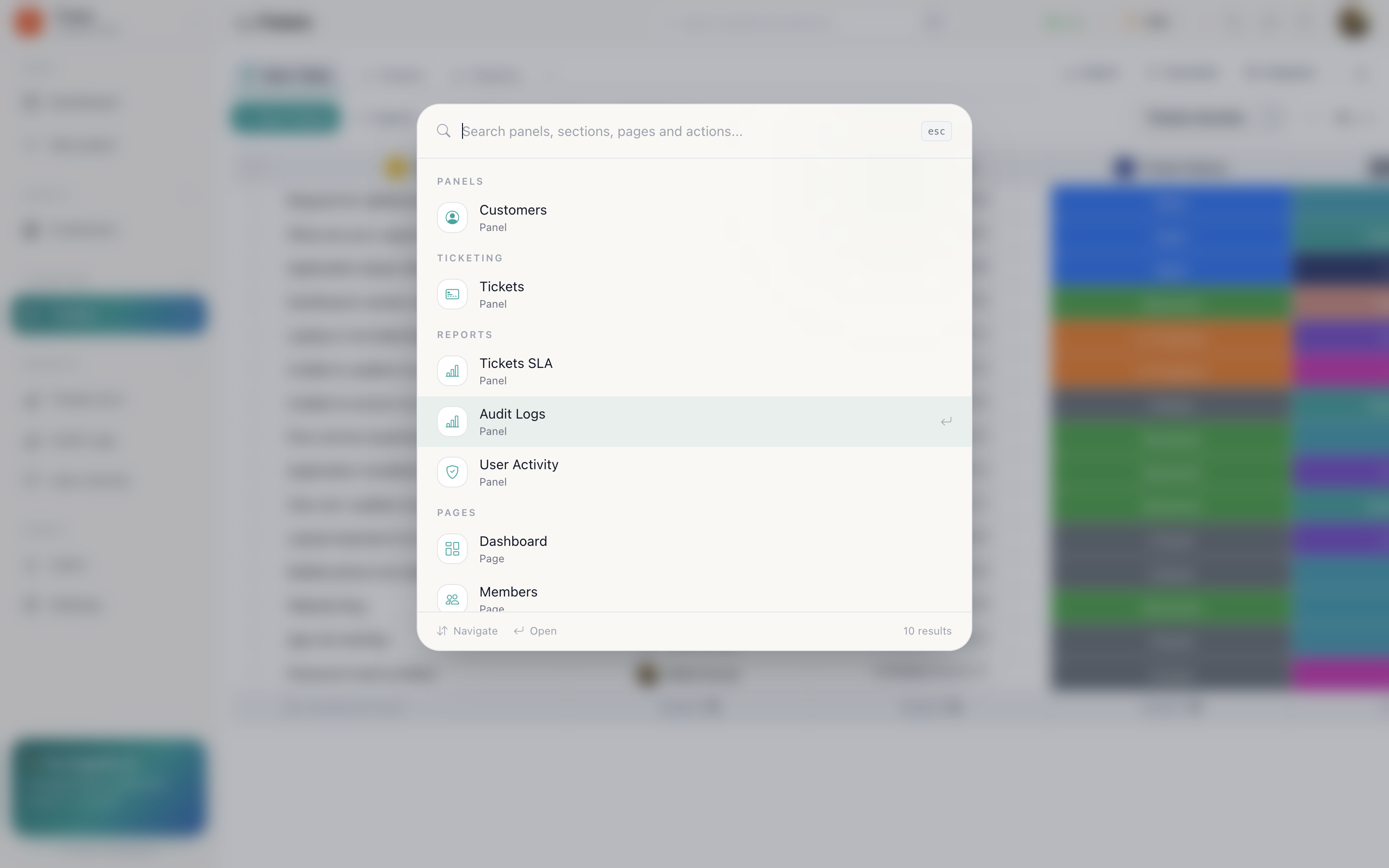
⌘K is the fastest way around Cognify. It is not only a search box, panels, sections, tabs, members and actions all rank together, so you can type “notifications” to open the notifications panel or “dark” to change theme without touching a menu.
Recent shows where you have been, which is usually enough to get back to yesterday's work in two keystrokes.
Availability
Cognify tracks whether you are working so that round-robin assignment and shift-based routing send work to people who can act on it.
- Busy: you have a record open.
- Idle: you are signed in with nothing open.
- On a break: set it yourself.
- Unavailable: you are signed in but should not be given work.
Leave it on Auto and Cognify moves you between Busy and Idle by itself. Set Unavailable to stay out of the rotation entirely.
Live updates
The console is live. When a colleague changes a cell, a new chat arrives, or an automation finishes, it appears without a reload. The connection dot in the navbar tells you whether that stream is healthy.
How do I…
Find anything fast: ⌘K, then start typing. Panels, sections, tabs, members and actions all rank together.
Check on an export: Navbar → Background tasks. Exports run server-side, so you can leave the page; the file arrives when the job reports Processed.
Tell the team I am away: Navbar → your status chip → Unavailable. Switch back to Auto to let Cognify track you again.
Collapse a noisy sidebar: Click the chevron beside any group heading. The state is remembered.