The record view
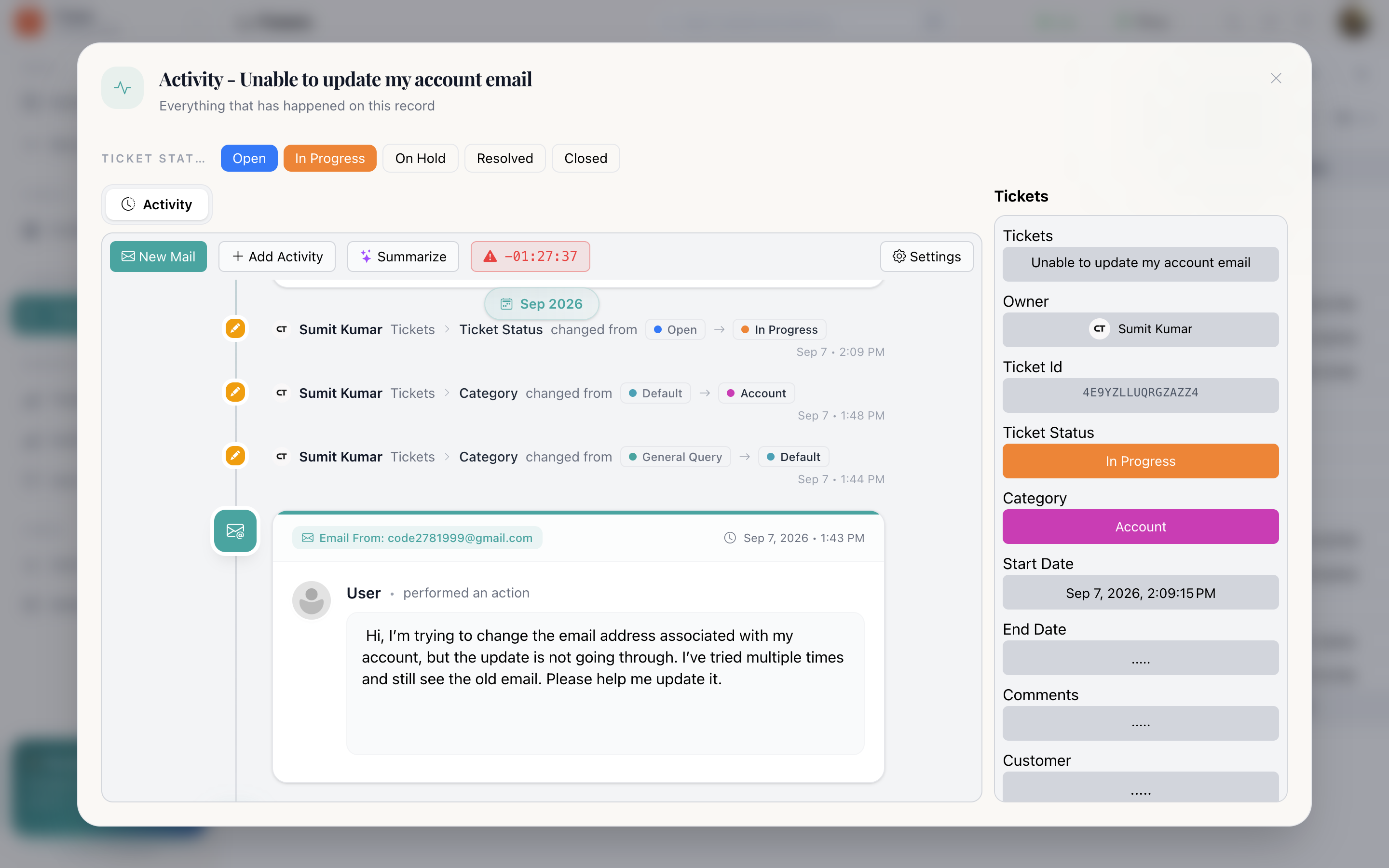
Clicking a row opens the record view. The full story of one record. Fields on one side, everything that ever happened to it on the other.
Fields
Every column on the panel, editable in place if your role allows it. The same editors as the table, with more room.
The activity timeline
Grouped by month, newest first. It records:
- Field changes: set to, changed from, cleared, removed, uploaded
- Emails sent and received on the record
- Notes added by the team
- Meetings scheduled
- Files attached
- Chat messages, for records that came from a channel
At the bottom sits the record's beginning. Nothing in between is ever rewritten.
Emails
When an email app is connected to the panel, you read the thread and reply without leaving the record. The Send button holds until the mail is actually away, so a green tick means it left rather than that it was queued.
Replies are recorded on the timeline with their attachments. See Email and calendar for connecting a mailbox.
Notes
Free-text notes on the record: the place for a phone call summary, a decision, or context the fields do not capture. Notes are part of the timeline, so they sit in order alongside the emails and field changes they relate to.
Meetings
With Google Calendar connected, schedule an event from the record: name, description, start and end, attendees, reminders, and either Google Meet or In person. Without a calendar connection Cognify asks you to connect one first.
Summarize
Summarize has Cognify AI read the conversation on the record and write a summary into the timeline. It is most useful on a long chat or email thread that someone else is about to pick up.
Chat
For records that arrived from a chat channel, the full transcript is here. See Chat inbox.
The SLA clock
On ticketing records only, a live countdown against the category's external target:
- Green, within
- Amber, at risk
- Red, breached
It appears only when all three of these are true:
- The ticket has an owner.
- The ticket has a category.
- That category has an external SLA set.
And it disappears once the ticket is Resolved or Closed, because the clock has stopped. If you expected a clock and there is none, one of those five things is the reason.
How do I…
Reply to a customer: Open the record → email area → write → Send. The reply is recorded on the timeline with its attachments.
Attach a file: Use a Bucket column, or attach it to the email you are sending.
Log a call or a decision: Add note.
Book a meeting: Meeting action → fill the form → save.
Catch up on a long thread: Summarize.