Tabs and views
A tab is a way of looking at a panel. Tabs never change the data (only the view) and a panel can carry as many as the team finds useful.
The five tab types
| Tab | What it shows | Available on |
|---|---|---|
| Main Table | The full table with the toolbar above it | Created with the panel |
| Filter Table | The same table with a filter permanently applied, saved for everyone | Standard, Ticketing, Social Chats |
| Graphs | Chart widgets built from this panel's columns. The source of dashboard pins | Every panel type |
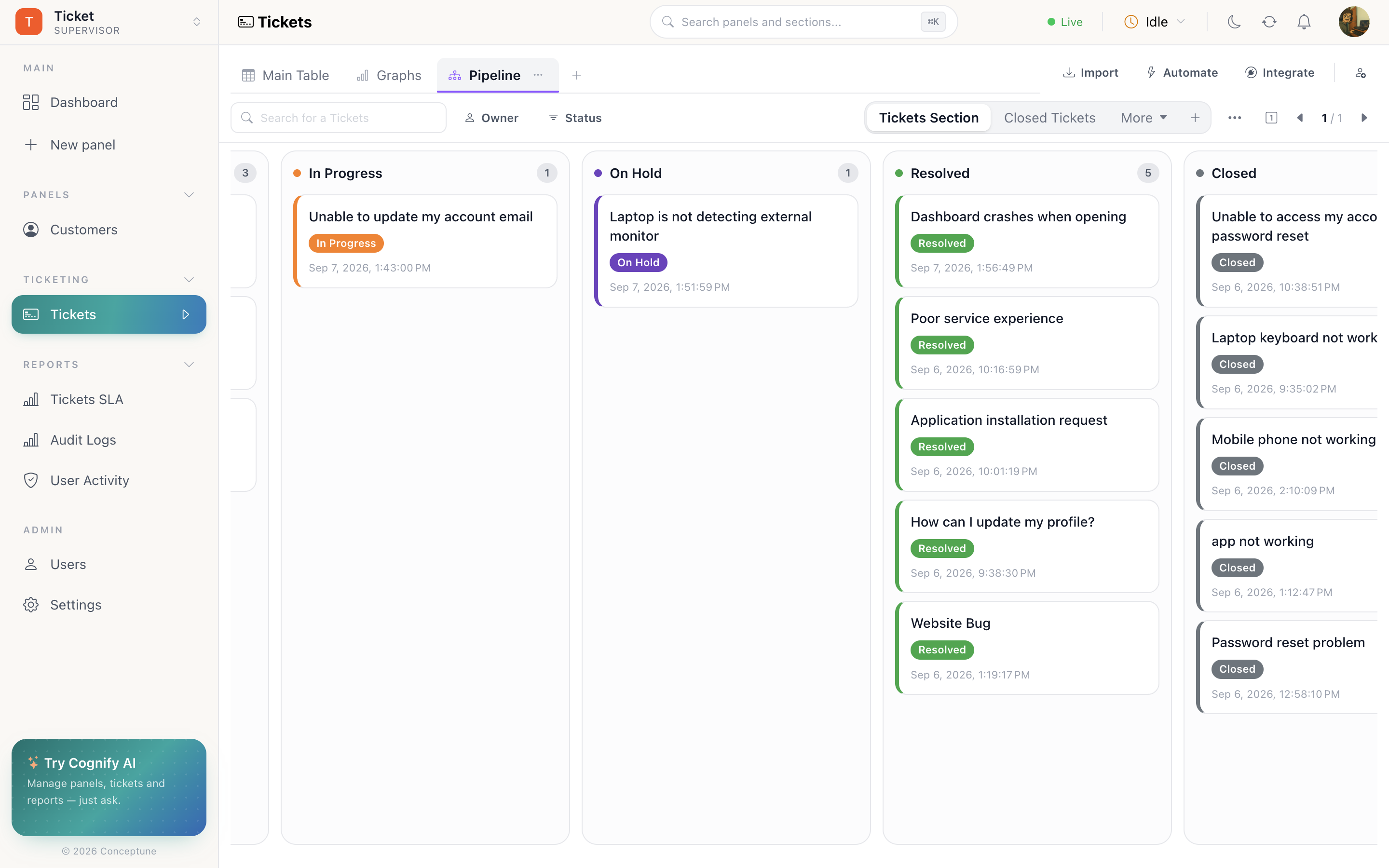
| Pipeline | A Kanban board: one lane per status, drag a card to change it | Standard, Ticketing, Social Chats |
| Chat Inbox | Conversations on the left, the thread on the right | Social Chats |
Report and Email Campaign panels can add Graphs only, nothing in them is edited by hand, so a board would have nothing to drag.
Filter Table
A Filter Table is the answer to “everyone on this team only ever looks at these rows”. The filter is part of the tab, so it is there for whoever opens it, and it survives between visits.
Use it for My open tickets, Deals closing this quarter, Unassigned leads: views that should exist for the team, but where rows should not move out of their section.
Pipeline
A Kanban board built on a status column: one lane per status, one card per row. Drag a card between lanes and the row's status updates, which means any automation watching that column fires exactly as it would from the table.
The same owner and section filters apply, so a board can be narrowed to one person's work.
Graphs
Chart widgets over this panel's columns. Add a Graphs tab, then Add widgets and pick a column and a chart type. Widgets can be resized, opened full screen, exported and pinned to the dashboard.
See Charts and widgets for the chart types and their settings.
Chat Inbox
Available on Social Chats panels. A list of conversations on the left, Your chats and Handled by you, searchable, with the selected thread on the right and a composer at the bottom. See Chat inbox.
How do I…
Add a tab: The + at the end of the tab strip → name it → pick the tab type.
Rename or delete a tab: The ⋯ on the tab itself.
Build a board: Add a Pipeline tab → pick the status column → drag cards between lanes.
Save a filter for the whole team: Add a Filter Table tab and set the filter on it, rather than filtering the main table every morning.
Split the work up permanently: Use sections rather than tabs. A section is where a row lives; a tab is only how you look at it.