Chat channels
Connect a channel to a Social Chats panel and conversations start arriving as records, with a Flux bot answering until a person takes over.
The channels
| Channel | Setup needs |
|---|---|
| Web Chatbot | Nothing external: configure it in Cognify and paste a snippet into your site |
| The Facebook page you want to answer for | |
| The Instagram account, connected through its page | |
| Telegram | A bot token from BotFather |
| A WhatsApp Business number | |
| Viber | A Viber bot account |
The web chat widget
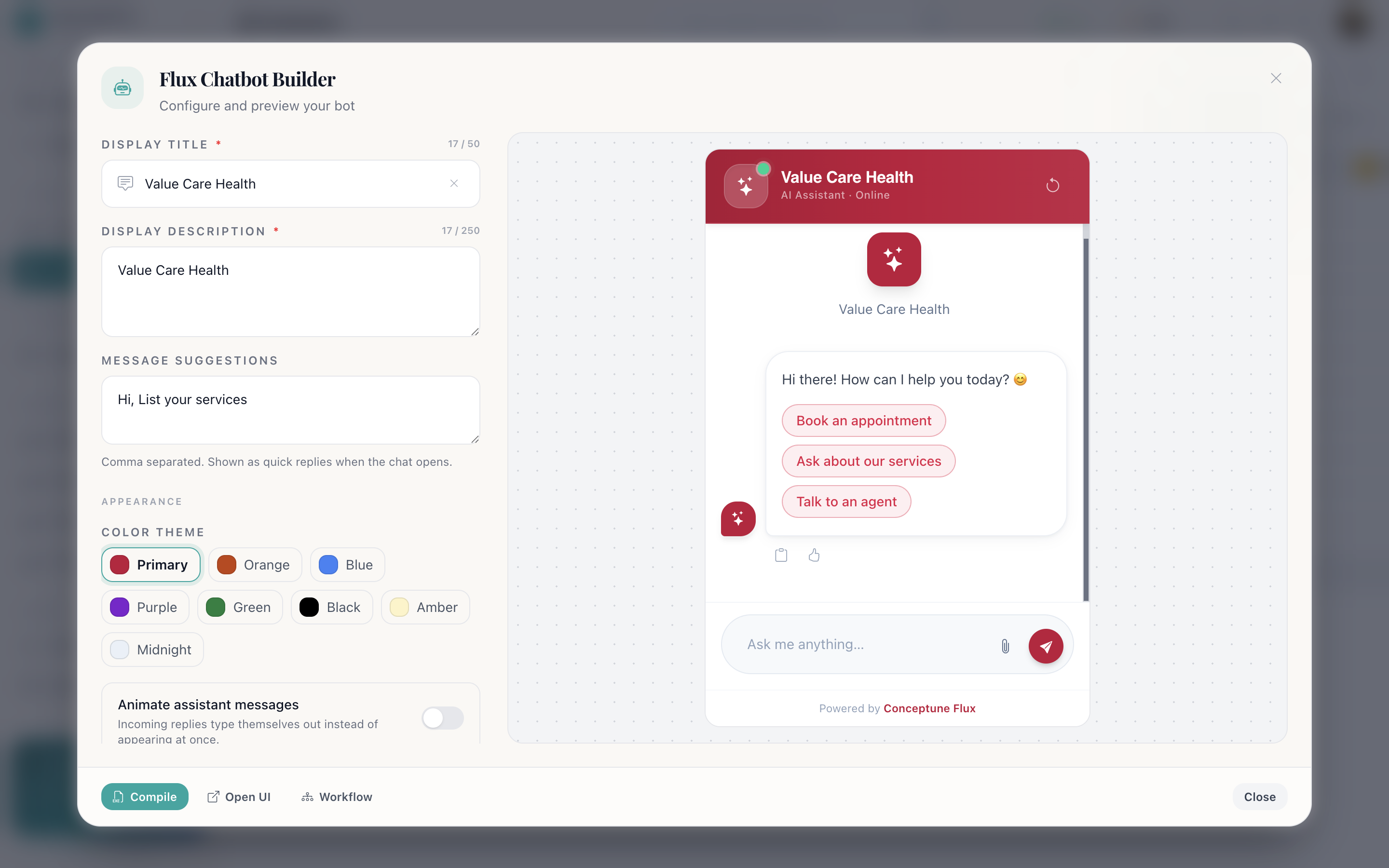
The one channel that needs nothing outside Cognify. Configure it, then paste the snippet into your site.
- Panel → Integrate → Web Chatbot.
- Set its identity: the name and avatar visitors see.
- Set its colour theme so it matches your site.
- Write the greeting it opens with.
- Choose what data it captures before or during the conversation: name, email, phone.
- Set the human handoff rules: when the bot should stop and fetch a person.
- Copy the Webchat Embed snippet into your site.
Connecting a social channel
- Panel → Integrate.
- Pick the channel.
- Follow its setup, for Telegram, paste the token from BotFather; for Facebook and Instagram, choose the page or account.
- Build the bot flow in Chat Workflow.
Flux, the bot behind them
Every channel shares the same bot engine. Flux is where the conversation logic lives, what the bot asks, what it answers, when it gives up and fetches a human. Cognify is where the resulting record, its history and the hand-off live.
That means you configure the flow once and it serves every channel you connect. A customer asking the same question on WhatsApp and on your website gets the same answer.
What arrives in Cognify
- A row per conversation in the Social Chats panel.
- The full transcript, readable from the record or from the bot's Chat logs.
- Captured data (whatever the bot collected) in the panel's columns, ready to filter and chart.
- A live queue in the toolbar's Chat button, where conversations waiting for a human show a dot.
See Chat inbox for working the queue day to day.
How do I…
Put the chat widget on my website: Integrate → Web Chatbot → configure identity, colour theme, greeting, data capture and human handoff → copy the Webchat Embed snippet into your site.
Connect a chat channel: Integrate → pick the channel → follow its setup → build the flow in Chat Workflow.
Change what the bot says or looks like: Integrate → the channel → identity, appearance, colour theme, data capture, human handoff.
Read a past conversation: Open the record → chat tab, or the bot's Chat logs.