Chat inbox
A Social Chats panel holds live conversations from every connected channel, web chat, Facebook, Instagram, Telegram, WhatsApp and Viber, with Flux running the bot behind them and a human stepping in when needed.
The three places conversations show up
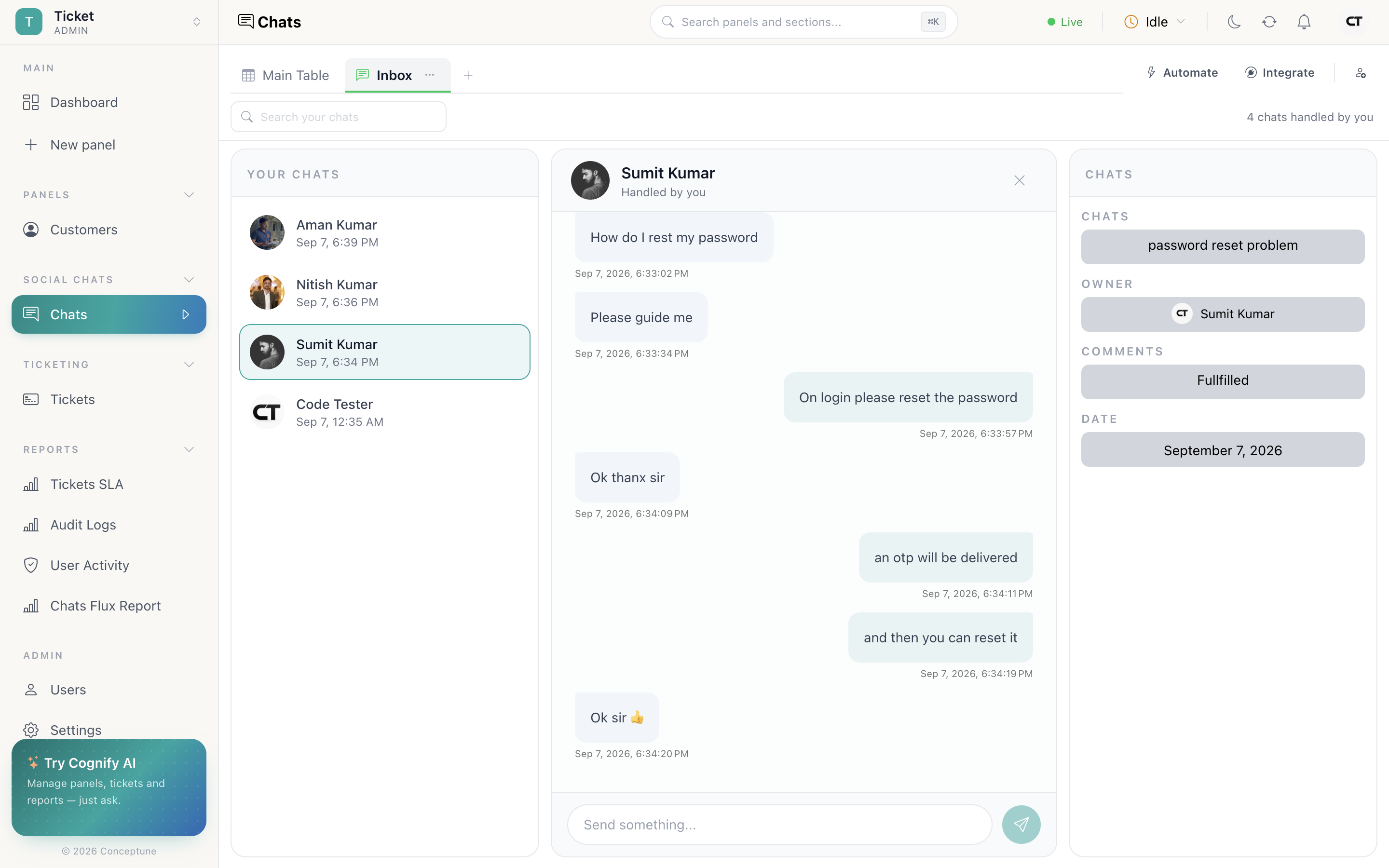
Chat Inbox tab
Your chats and Handled by you, searchable, with the thread on the right and a composer at the bottom.
The Chat button
The live queue in the panel toolbar. Conversations waiting for a human show a dot.
Chat logs
The full transcript of any session, from the record or from the bot's settings.
Taking over from the bot
Flux answers until it reaches something it should not handle, a question outside its flow, an explicit request for a person, or a handoff rule you set when configuring the channel. The conversation then joins the queue.
- Toolbar → Chat.
- Pick a waiting conversation, they show a dot.
- Accept Chat.
You are now the human on it. The customer's record sits alongside the thread, so everything you know about them is in view while you type.
Live updates
The inbox is live. New messages, new conversations and colleagues accepting chats all appear without a reload. The connection dot in the navbar tells you whether that stream is healthy, if it reads offline, you are looking at a snapshot and should reload.
What the bot captured
Whatever the widget was configured to collect (name, email, phone) arrives in the panel's columns. That makes conversations filterable and chartable like any other records: which channel produces the most enquiries, how many needed a human, what people ask about.
Summarising a long thread
Summarize on the record has Cognify AI read the conversation and write a summary into the timeline. It is most useful at a hand-off, when the next person needs the gist rather than forty messages.
Turning a chat into something else
A conversation is often the start of a ticket or a lead rather than the end of anything. Add a Mapping column pointing at your Tickets or Leads panel, then an automation such as status changes to something → move row to mapped. Marking the chat as “needs follow-up” files it where the follow-up work actually lives.
How do I…
Take over from the bot: Toolbar → Chat → pick a waiting conversation → Accept Chat.
Read a past conversation: Open the record → chat tab, or the bot's Chat logs.
See only the chats I am handling: Chat Inbox tab → Handled by you.
Stop receiving new chats: Navbar → your status chip → Unavailable.
Change what the bot says: Integrate → the channel → identity, greeting, data capture and human handoff. See Chat channels.