Rows and the table
The main table is where most work happens: adding rows, editing cells inline, narrowing down to what matters, and acting on many records at once.
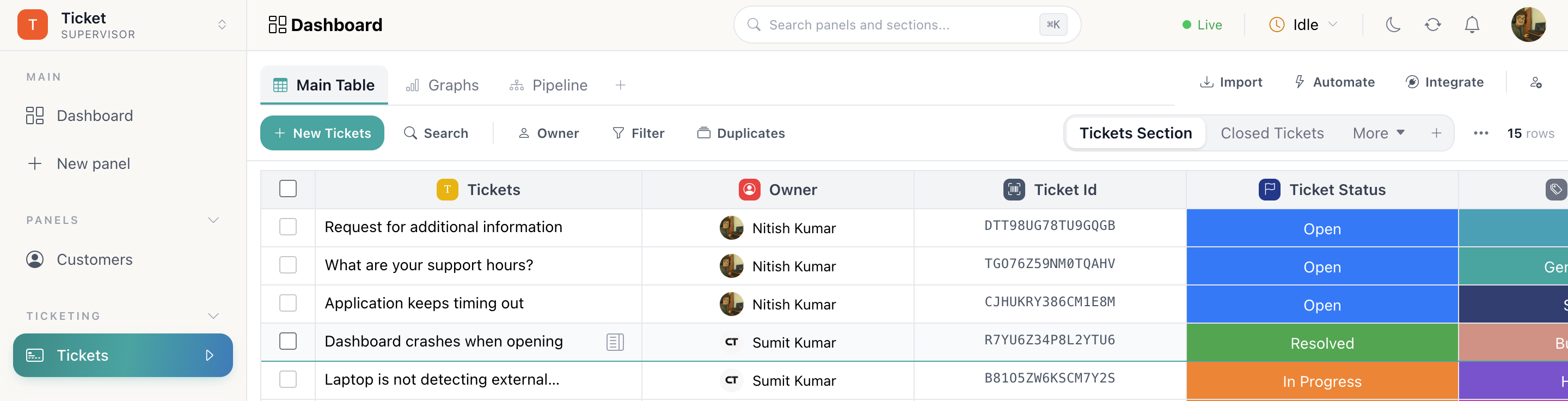
The toolbar
Left to right:
| Control | What it does |
|---|---|
| New <panel> | Adds a row, ready to fill in |
| Search | Collapses to a button, expands into a box. Searches the panel including Unique IDs |
| Owner | Filter to one or more owners; the button shows how many are selected |
| Filter | Advanced, stackable column filters |
| Duplicates | Group rows that repeat an email, phone or primary value |
| Send Emails | Email Campaign panels only: opens the campaign composer |
| Chat | Appears when a Flux chat channel is connected: opens the live queue |
| Section switcher | Move between sections, with the live row count on the right |
Search
Search runs over the rows already loaded in your browser, which makes it instant. If nothing matches, Search more rows asks the server to look through the rest of the panel.
It matches Unique IDs too, so pasting a reference a customer quoted takes you straight to their record.
Filters
Owner is the quick filter, because owner is the axis most work is divided along. Filter is the general one: pick a column, pick an operator, give a value, and stack as many clauses as you need.
- is equal to
- is not equal to
- is greater than
- is greater than or equal to
- is smaller than
- is smaller than or equal to
- matches to
Then Apply, or Clear to drop them all. Filters are per-visit and personal to you. They change nothing for anyone else.
Editing rows
Click any cell to edit it in place. Each column type opens its own small editor, dropdowns and statuses show their coloured options, owner shows the member list, dates open a picker, and Bucket columns take a file straight from the cell.
Every change is written to the record's activity timeline, so nothing is silently overwritten. Rows load as you scroll; Load More pulls the next page.
Bulk actions
Ticking the checkbox column opens the bulk bar:
| Action | Notes |
|---|---|
| Duplicate | Copies the selected rows into the same section |
| Export | Queues a server-side export of just those rows |
| Move to section | Within the same panel: columns match, so nothing to map |
| Move to panel | Across panels. You map the columns as you go with Map & Move |
| Delete | Removes the rows and their activity |
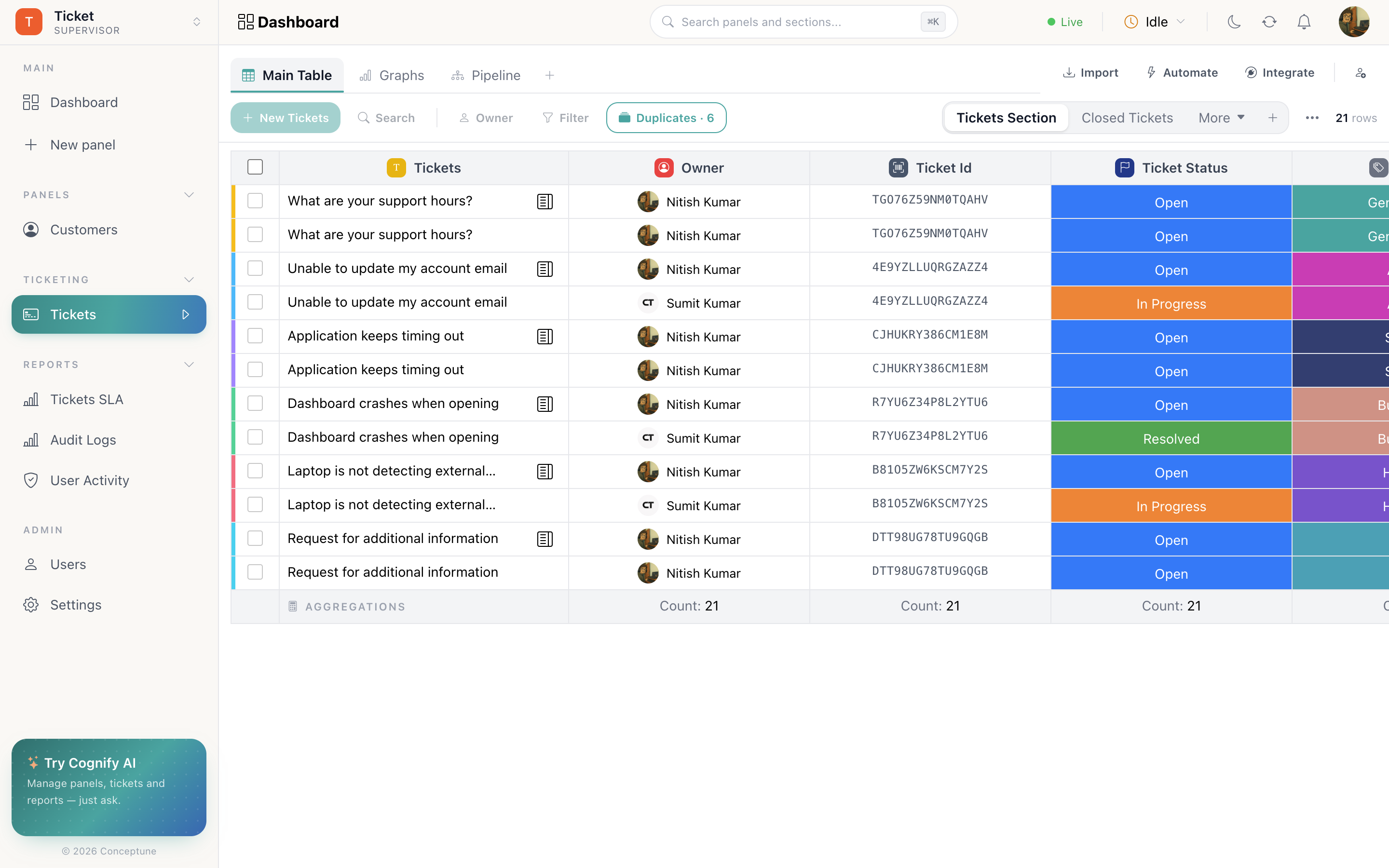
Duplicates
Duplicates groups rows that repeat an email address, a phone number or the primary value, and shades each group so you can see them together.
It is a review mode, not a filter. While it is on, Search, New, Owner and Filter are disabled, and if no duplicates are found it switches itself back off.
How do I…
Add a row: New <panel>, then fill the cells inline.
Find a record by its ID: Type or paste the Unique ID into Search.
Filter to my own work: Owner → pick yourself. If your role is view only own data, this is already applied and cannot be removed.
Move rows to another panel: Select the rows → Move to → pick the panel and section → Map & Move, matching the columns as you go.
Review duplicates: Turn on Duplicates, read each group, keep the record you want and delete the rest. Turn it off to get the normal toolbar back.
Fix a wrong row count: Section ⋯ → Calibrate.