Core concepts
Five words carry the whole product: workspace, panel, section, row and tab. Learn these and every other page in the guide reads easily.
They nest, in that order. A workspace holds panels, a panel holds sections, a section holds rows, and tabs are the different ways of looking at all of it.
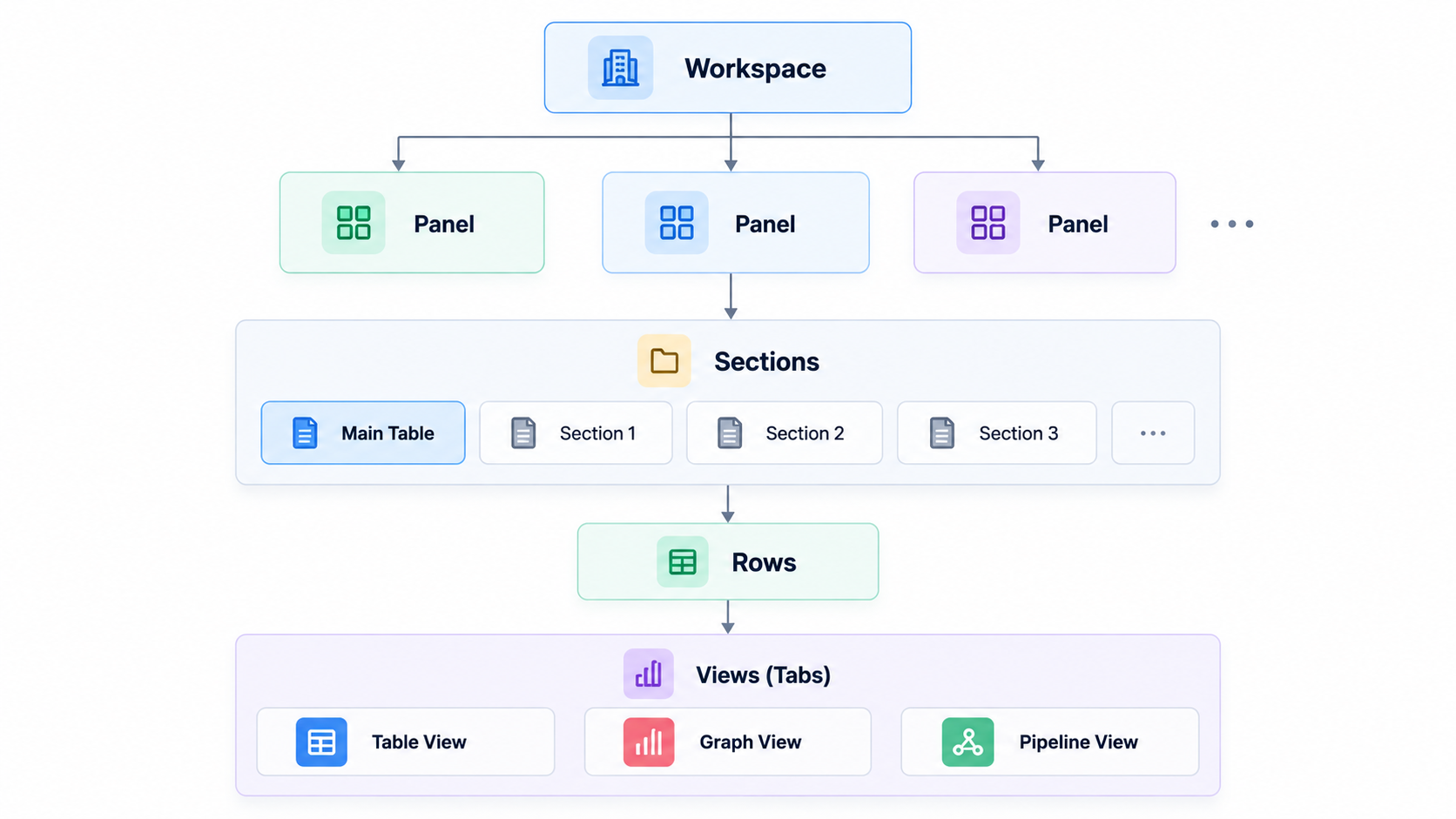
Workspace
One company, team or project. Everything lives inside a workspace, its panels, its members, its roles, its settings, its integrations and its billing, and nothing crosses between workspaces. A panel in one is invisible from another.
You can belong to several. An agency might keep one workspace per client; a company might keep one for Support and one for Sales if the two teams should not see each other's records at all. Switching between them is ⌘K / Ctrl+K → Switch workspace.
Panel
One kind of thing you track: Leads, Tickets, Orders, Candidates, Tasks. A panel owns its columns, its data, and who may see it.
A panel has a type, chosen when you create it, which decides the columns it starts with and the features it offers: Standard, Ticketing, Social Chats, Email Campaign or Report. See Panels for what each type gives you.
Section
A tab-like split inside a panel: 2024 vs 2025, North vs South, Open vs Archive. Every row lives in exactly one section, and the section switcher remembers where you were.
Sections are the permanent divisions of a panel. They are not the same as filters, a filter is a temporary lens you apply this visit, while a section is where the row actually lives. Moving a row between sections is a deliberate act.
Row
One record: one lead, one ticket, one order. Opening a row gives you the record view, every field, plus the full history of what happened to it.
Tab
A way of looking at the panel. Tabs never change the data, only the view, and a panel can have as many as you like:
| Tab | What it shows |
|---|---|
| Main Table | The full table with the toolbar above it. Created with the panel. |
| Filter Table | The same table with a saved filter always applied. |
| Graphs | Chart widgets built from this panel's columns. The source of dashboard pins. |
| Pipeline | A Kanban board, one column per status, drag a card to change it. |
| Chat Inbox | Conversations on the left, the thread on the right. |
Two more you will meet constantly
Owner
The member responsible for a row. Owner is not just another column, filters, automations, notifications and the “only see my own rows” permission are all built on it. If you set up nothing else, set up owners.
Activity
The timeline attached to every row: field changes, emails, notes, meetings, chats. Nothing is silently overwritten: the record keeps its own history, and you can always see what a field used to be and who changed it.
Entries made by the system are signed Cognify AI. Anything that arrived from outside the workspace (an inbound email, a public form) shows as User.
How they fit together
A worked example. A support team creates a workspace called Acme Support. In it they create a Ticketing panel called Tickets, which arrives with Ticket ID, Ticket Status and Category columns already in place. They add two sections: Live and Archive. Every incoming email becomes a row in Live. They add a Pipeline tab so the team can drag tickets across statuses, and a Graphs tab to chart volume by category. Each ticket's owner drives who gets notified, and its activity holds the whole email thread.
Same five words, whatever you are building.