Ticketing and support
A Ticketing panel is a support desk. Beyond the standard table it adds ticket references, resolution statuses, routing categories, SLA clocks and a report that fills itself.
What a ticketing panel adds
| Column | What it is |
|---|---|
| Ticket ID | A 16-character reference to quote to customers. Generated on creation, never edited, and matched by search |
| Ticket Status | Open, In Progress, On Hold, Resolved, Closed. Resolved and Closed count as finished and stop the clock |
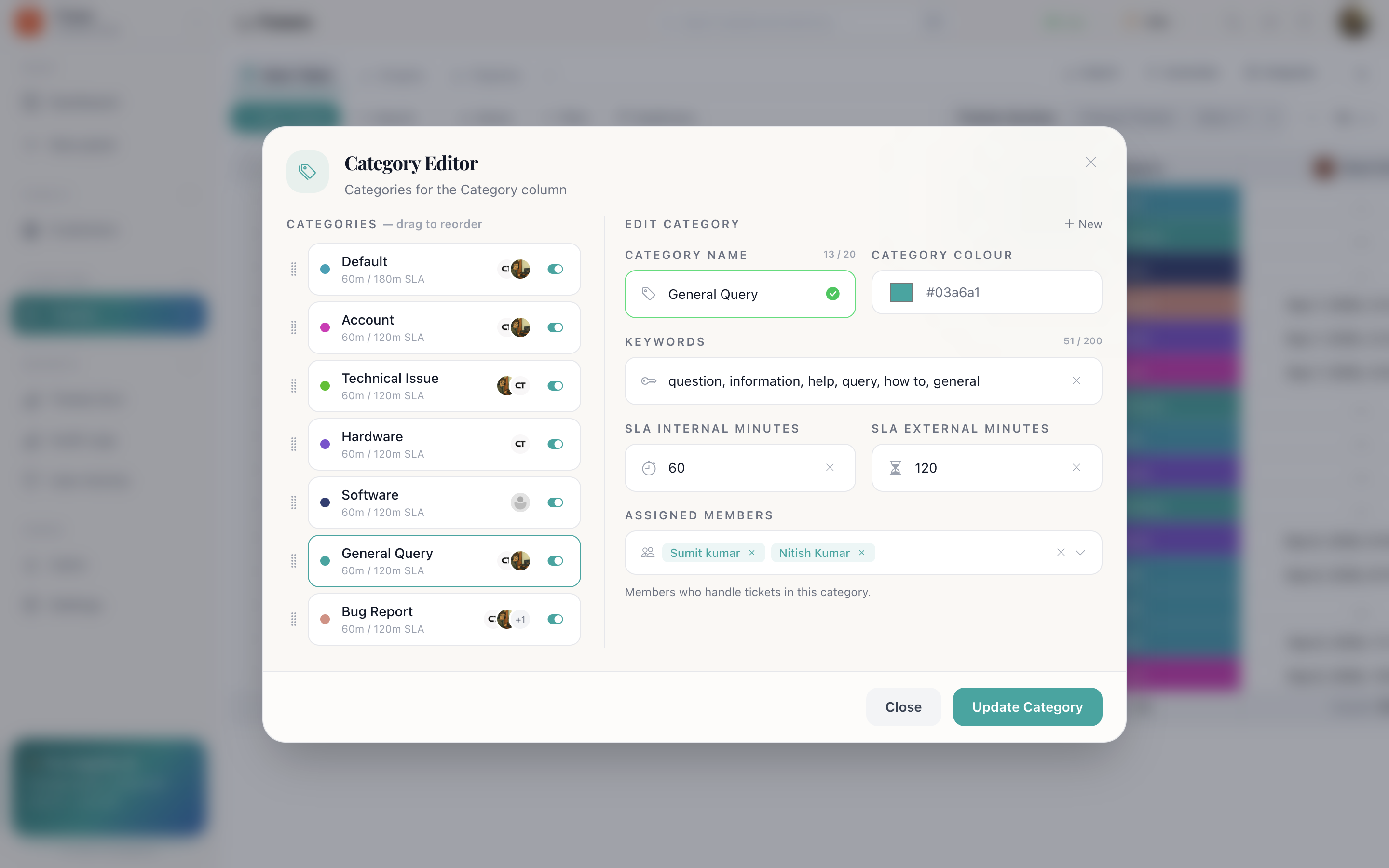
| Category | The routing and SLA unit: carries a colour, keywords, assigned members, and two SLA targets |
| Start Date | When work began |
| End Date | When it ended. The resolution clock runs between the two |
None of these can be deleted. The SLA clock, the routing and the SLA report are built on them.
Categories
A category is more than a label. Each one carries:
- A colour: so the table reads at a glance.
- Keywords: comma-separated, e.g.
Hi,Hello,Dear. Incoming mail matching them is filed into this category. - Assigned members: who handles this kind of request, or Anyone can handle it.
- SLA Internal: your own warning line, in minutes. Crossing it turns the ticket at risk.
- SLA External: what the customer was promised, in minutes. Crossing it is a breach.
The SLA clock
On a ticket record, a live countdown against the category's external target:
- Green, within
- Amber, at risk
- Red, breached
It needs all three of these, or it does not appear:
- An owner on the ticket.
- A category on the ticket.
- An external SLA set on that category.
It also disappears once the ticket is Resolved or Closed, because the clock has stopped.
Email as the front door
Connect Gmail or Mail Engine to the panel and incoming mail opens tickets by itself. The sender's address becomes the reply target, so answering from the record view goes back to the customer in the same thread.
See Email and calendar.
Routing tickets automatically
Two mechanisms, used together:
- Category keywords file the ticket, an email mentioning “invoice” lands in the Billing category.
- An assignment automation then picks the owner: category changes to something → auto assign as owner.
Together, a mail arrives, is categorised, and is on someone's plate without a human.
The automations to set up
a row is created → set datetime to now on Start
Date
Starts the resolution clock automatically.
category changes to something → auto assign as owner
Routes the ticket to whoever handles that category.
status changes to something → set datetime to now on
End Date
Stamps resolution the moment the status reaches Resolved.
status changes to something → send email
Tells the customer their ticket was resolved, without anyone writing it.
The SLA report
Every ticketing panel gets a companion report panel named <Panel> SLA, written automatically and listed under Reports in the sidebar. One row per ticket, with:
- Ticket
- Owner
- Category
- Ticket Status
- Raised At
- Assigned At
- Resolved At
- Resolution Time
- SLA Internal
- SLA External
- Time Over SLA
- SLA Status
- SLA Breached
- Reassignments
- Snapshot
Resolution Time averages in the footer and Time Over SLA sums, so a section total answers “how are we doing” with no setup at all. See Reports.
Shifts and targets
If your desk runs shifts, put people in user groups. A group carries a shift start, a shift end, and its own internal and external SLA minutes, which is how an overnight team gets different targets from the day team.
How do I…
Set up categories: Open the Category column's editor → add a category → name, colour, keywords, assigned members and the two SLA times in minutes.
Turn incoming mail into tickets: Connect Gmail or Mail Engine to the panel.
Watch the SLA on a ticket: Open the record. The countdown sits at the top while the ticket is live.
See how the desk is doing: Open the <Panel> SLA report under Reports, or chart SLA Breached and pin it to the dashboard.
Work the queue on a board: Add a Pipeline tab on Ticket Status and drag tickets across as they progress.